Saturday, December 26, 2020

PowerShell: Unit Test Functions and Accessing the Invoking Code's Line Number

In a previous post it was shown that the methods of PowerShell classes cannot determine the invoking line number and filename using $MyInvocation.ScriptLineNumber and $MyInvocation.ScriptName respectively (see PowerShell: $Myinvocation.ScriptLineNumber behaves incorrectly with Class Methods). Certain categories of methods make use of the invoking line numbers and filenames such as unit test methods (AreEqual, IsTrue, IsFalse, etc.) and logging methods (LogError, LogWarning, LogInfo, etc.). This post will demonstrate how to make use of PowerShell classes and methods in conjunction with functions. The functions will utilize $MyInvocation.ScriptLineNumber and $MyInvocation.ScriptName and pass the line number and filenames to the class methods.

The class, PsUnit, is based off of well known unit test frameworks such as NUnit, XUnit, and JUnit but clear PsUnit is a trivial subset of a full unit test suite. The PsUnit class exposes methods IsTrue, IsFalse, and AreEqual which each take a filename and line number parameter:

class PsUnit {
   hidden static [void] IsTrue(
       [bool] $shouldBeTrue,
       [string] $filename,
       [int] $lineNumber)

   hidden static [void] IsFalse(
       [bool] $shouldBeFalse,
       [string] $filename,
       [int] $lineNumber)

   hidden static [void] AreEqual(
       [object] $leftValue,
       [object] $rightValue,
       [string] $filename,
       [int] $lineNumber)
}

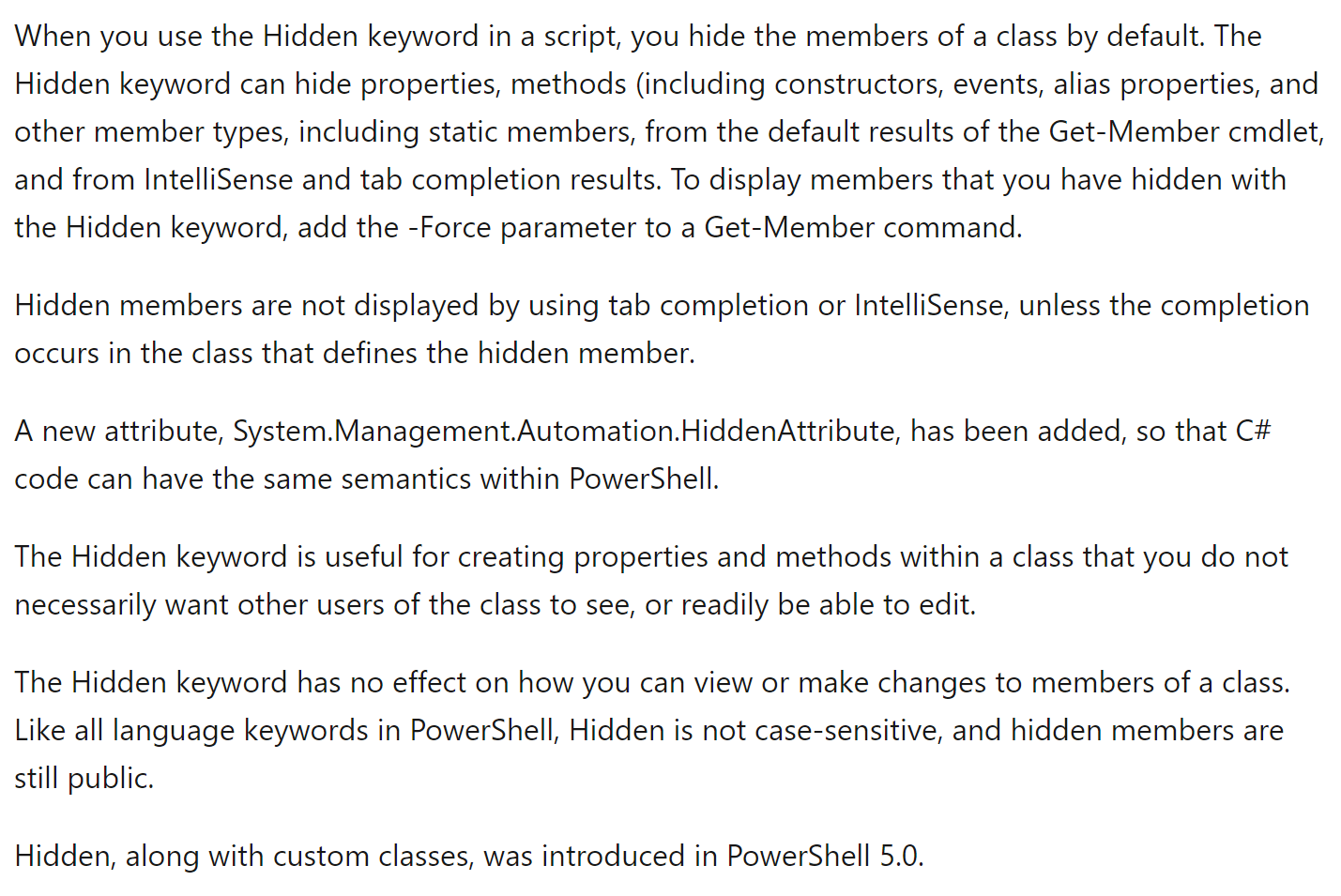
The methods above are decorated with the hidden keyword. In PowerShell there is no private keyword like C++, Java, and C#. The hidden keyword means that features like IntelliSense do not detect methods prefixed by this keyword. The hidden keyword is as closest that PowerShell comes to the private keyword found in other languages. The long description of the keyword hidden is reviewed in Appendix A: The Hidden Keyword.

Each of the method signatures shown above is static, meaning that the method can be invoked without creating an instance of the PsUnit class. The following functions wrap these methods and pass in the filename and line numbers retrieved from $MyInvocation.ScriptName and $MyInvocation.ScriptLineNumber:

function IsTrue {
   Param(
       [Parameter(Mandatory=$true)]
       [bool] $shouldBeTrue    )
   
   [PsUnit]::IsTrue(
       $shouldBeTrue,
       $MyInvocation.ScriptName,
       $MyInvocation.ScriptLineNumber)
}

function IsFalse {
   Param(
       [Parameter(Mandatory=$true)]
       [bool] $shouldBeFalse
   )
   
   [PsUnit]::IsFalse(
       $shouldBeFalse,
       $MyInvocation.ScriptName,
       $MyInvocation.ScriptLineNumber)
}

function AreEqual {
   Param(
       [object] $leftValue,
       [object] $rightValue
   )

   [PsUnit]::AreEqual(
       $leftValue,
       $rightValue,
       $MyInvocation.ScriptName,
       $MyInvocation.ScriptLineNumber)
}

The PsUnit class's  methods IsTrue, IsFalse, and AreEqual all throw an exception if that value being tested contradicts the method name. The IsTrue method throws an exception if the value passed is $false. The AreEqual method throws an exception if the two values passed to the method are not equal.

The  PsUnit class is implemented in its entirety is as follows including code to test code AreEqual, IsFalse, and IsTrue:

Set-StrictMode -Version 3.0

class PsUnit {
   hidden static [string] $filenameLineNumberSeparator

   hidden static [string] $filenameLineNumberStart

   hidden static [string] $filenameLineNumberEnd

   hidden static [string] $boolMismatchMessage
   
   static PsUnit() {
       [PsUnit]::filenameLineNumberStart = '('
       [PsUnit]::filenameLineNumberEnd = ')'
       [PsUnit]::filenameLineNumberSeparator = ':'
       [PsUnit]::boolMismatchMessage = 'Test expected value of '
   }

   hidden static [string] CreateMessage(
                               [string] $message,
                               [string] $filename,
                               [int] $lineNumber) {
       return "$message $([PsUnit]::filenameLineNumberStart)$filename" +
           "$([PsUnit]::filenameLineNumberSeparator)$lineNumber$([PsUnit]::filenameLineNumberEnd)"
   }


   hidden static [void] IsTrue(
                           [bool] $shouldBeTrue,
                           [string] $filename,
                           [int] $lineNumber) {
       if ($shouldBeTrue) {
           return
       }

       throw [PsUnit]::CreateMessage(
                   "$([PsUnit]::boolMismatchMessage) $true",
                   $filename,
                   $lineNumber)
   }

   hidden static [void] IsFalse(
                           [bool] $shouldBeFalse,
                           [string] $filename,
                           [int] $lineNumber) {
       if (!($shouldBeFalse)) {
           return
       }

       throw [PsUnit]::CreateMessage(
                   "$([PsUnit]::boolMismatchMessage) $false",
                   $filename,
                   $lineNumber)
   }

   hidden static [void] AreEqual(
                           [object] $leftValue,
                           [object] $rightValue,
                           [string] $filename,
                           [int] $lineNumber) {
       if (($null -eq $leftValue) -and ($null -eq $rightValue)) {
           return
       }

       if ($null -eq $rightValue) {
           throw [PsUnit]::CreateMessage(
               "Test failed, assigned left value ($leftValue) cannot compared to right value of null",
               $filename,
               $lineNumber)
       }
       
       if ($null -eq $leftValue) {
           throw [PsUnit]::CreateMessage(
               "Test failed, assigned right value ($rightValue) cannot compared to left value of null",
               $filename,
               $lineNumber)
       }

       if ($leftValue.GetType() -ne $rightValue.GetType()) {
           throw [PsUnit]::CreateMessage(
               "Test failed type differ $($leftValue.GetType()) -ne $($rightValue.GetType())",
               $filename,
               $lineNumber)
       }

       if ($leftValue -eq $rightValue) {
           return
       }

       throw [PsUnit]::CreateMessage(
           "Test failed values not equal $leftValue -ne $rightValue",
           $filename,
           $lineNumber)
   }
}

function IsTrue {
   Param(
       [Parameter(Mandatory=$true)]
       [bool] $shouldBeTrue
   )
   
   [PsUnit]::IsTrue(
       $shouldBeTrue,
       $MyInvocation.ScriptName,
       $MyInvocation.ScriptLineNumber)
}

function IsFalse {
   Param(
       [Parameter(Mandatory=$true)]
       [bool] $shouldBeFalse
   )
   
   [PsUnit]::IsFalse(
       $shouldBeFalse,
       $MyInvocation.ScriptName,
       $MyInvocation.ScriptLineNumber)
}

function AreEqual {
   Param(
       [object] $leftValue,
       [object] $rightValue
   )

   [PsUnit]::AreEqual(
       $leftValue,
       $rightValue,
       $MyInvocation.ScriptName,
       $MyInvocation.ScriptLineNumber)
}

function Test-AreEqualUnequal {
   Param(
       [object] $leftValue,
       [object] $rightValue
   )

   try {
       AreEqual $leftValue $rightValue
   }
   
   catch {
       return
   }

   throw "Exception should have been thrown ($($MyInvocation.ScriptName):$($MyInvocation.ScriptLineNumber))"
}

function Test-AreEqual {
   try {
       AreEqual $false $false
       AreEqual $true $true
       AreEqual $null $null
       AreEqual 10 10
       AreEqual 'xyZ' 'XYZ'
   }
   
   catch {
       throw
   }

   Test-AreEqualUnequal 'xyZ' $null
   Test-AreEqualUnequal $null 'xyZ'
   Test-AreEqualUnequal 'qed' $null
   Test-AreEqualUnequal $true $false
   Test-AreEqualUnequal $false $true
   Test-AreEqualUnequal 10 5
   Test-AreEqualUnequal 'x' 5
}

function Test-Is-False {
   [bool] $expectedException = $false

   try {
       IsFalse $false
       IsFalse $($null -eq '')
       $expectedException = $true
       IsFalse $true
   }
   
   catch {
       if ($expectedException) {
           return
       }

       throw
   }
}

function Test-Is-True {
   [bool] $expectedException = $false

   try {
       IsTrue $true
       IsTrue $('AbC' -eq 'aBC')
       $expectedException = $true
       IsTrue $false
   }
   
   catch {
       if ($expectedException) {
           return
       }

       throw
   }
}

try {
   Test-Are-Equal
   Test-Is-False
   Test-Is-True
   Write-Host 'Success'
}

catch {
   $errorRecord = $_
   Write-Host "Error: $errorRecord.Exception"
   Write-Host 'Failure'
}

Appendix A: The Hidden Keyword

The documentation for the hidden keyword can be found at: about_Hidden. The long description of hidden keyword is defined in "about_Hidden" as follows:


Friday, December 25, 2020

Git changing the Message associated with a Commit

Before pushing code, many Git repositories require that the Git commit message contain an ID number for issue associated with the commit. For many projects this means the Git commit message should contain the associated Jira ticket number. A too common issue is when a commit is performed a developer forgets the issue ID or enters the issue ID in the wrong format. The solution is to edit the commit message.

To demonstrated, consider the following git commit:

git commit -m "SWP123 Migrated to Groovy/Jenkins build"

The Jira ticket should take the form of SWP-123 not SWP123 so the git push will fail for the above commit.

The Git command that allows the commit message to edited is git commit with the --amend option:

Invoking git commit  --amend displays the following which by default is the commit message and a  few lines of documentation loaded in the VIM editor (the default editor associated with git commands is VIM):


Using the intuitive editing commands of the the VIM editor (i to insert, edit the message, ESC to stop inserting, and :wq to save and quit) the Git comment can be modified:


The prefix of the git commit message was edited from SWP123 to SWP-123 which allows the git push to succeed since the commit message matches a legitimate Jira ticket number.


\


Saturday, December 19, 2020

PowerShell: Assigning the No-Parameter-Specified case to a Parameter Set


PowerShell parameter sets allow cmdlet parameters to be grouped so that only certain parameters can be used in combination (see PowerShell: Cmdlet Parameter Sets). When parameter sets are used, there needs to be a mechanism for specifying what parameter set is associated when there is no parameter specified when invoking a Cmdlet. The DefaultParameterSetName property of the CmdletBinding attribute (see About Functions CmdletBindingAttribute) identifies which parameter set is the default parameter set and hence the parameter set invoked when no parameter is specified to a cmdlet.

To demonstrate the issue consider a cmdlet, CreateArtifacts.ps1, which is used during build to create artifacts. The parameters and parameter sets for this cmdlet are defined as follows:


param
(
 [Parameter(ParameterSetName='Debug')]
 [switch] $IsDebug,
 [Parameter(ParameterSetName='Release')]
 [switch] $IsRelease
)

Write-Host 'Hi mom, I miss you.'

There is no way to identify in the previous script whether the parameter set named, Debug, or the parameter set named, Release, should be processed if no parameter is specified to the CreateArtifacts.ps1 cmdlet. When the script is invoked from Visual Studio code the following message is displayed:


Assigning a value of Release to the DefaultParameterSetName property of the CmdletBinding attribute specifies that the default parameter set is named, Release:

[CmdletBinding(DefaultParameterSetName='Release')]
param
(
 [Parameter(ParameterSetName='Debug')]
 [switch] $IsDebug,
 [Parameter(ParameterSetName='Release')]
 [switch] $IsRelease
)

Write-Host 'Hi mom, I miss you.'

Invoking the the CreateArtifacts.ps1 cmdlet as showing above with the DefaultParameterSetName specified allows the script to run successfully even when no parameter is specified when the script is invoked:


Sunday, November 22, 2020

PowerShell: $Myinvocation.ScriptLineNumber behaves incorrectly with Class Methods

The PowerShell automatic variable, $Myinvocation, contains a ScriptLineNumber property. This property corresponds to the InvocationInfo class' ScriptLineNumber property  (see: InvocationInfo Class) which is defined as:


The property does not return the current line number but returns the line number that invoked the cmdlet (see PowerShell: Getting the Current Filename and Line Number). A PowerShell function is a form of cmdlet such as the following which contains FunctionA, FunctionB, and FuncntionC:


Note that each Write-Host makes use of the Subexpression Operator $() in order display the value of $Myinvocation.ScriptLineNumber (see: PowerShell: Expanding Object Properties in Strings using Subexpression Operator). The output of the above script is intuitive with each Write-Host displaying the line number invoking the current function/cmdlet:

The syntax to define classes was implemented in PowerShell 5.0. Classes contain methods and not functions. The previous code showing FunctionA, FunctionB, and FunctionC has been rewritten to as the equivalent code using class, ShowOffLineNumbers, and methods MethodA, MethodB, and MethodC (see the following):


Methods are not cmdlets so the value returned by $Myinvocation.ScriptLineNumber is not the line of code invoking the method is shown below (the scripts output):


Friday, October 16, 2020

PowerShell: Inadvertently Returning Multiple Values from a Function

During a project (warning: do not write code while tired), I encountered a PowerShell function mysteriously returning three values. Most savvy PowerShell developers recognize that the following method returns an array of three items ([0]=Hi mom, [1]=<comma><space>, [2]=I miss you):

function ReturnThreeValues
{
  'Hi mom'
  ', '
  'I miss you.'
}

The return keyword can be used to (a.k.a being invoked with no return value):
  • exit a function
function ShowEmptyReturn
{
  return
}
  • exit a function and return a value from the function.
function ShowReturnWithValue
{
  'Hi mom, I miss you.'
}

The previous function's returns a string, "Hi mom, I miss you." unlike our first example that returns an array of three elements containing the same text.

The return keyword is not required to return a value from a function. The result of each statement is returned from a PowerShell function. I'm going to write the previous sentence again but this time I will make the entire sentence in boldface so you pay attention. The result of each statement is returned from a PowerShell function. To understand this consider the GetFullLogFilename function which performs the following task:
  • Takes a folder (directory) and filename as parameters
  • Verifies a directory exists and if it does not creates it
  • Concatenates the folder and the filename into a fully qualified filename
  • Verifies a fully qualified filename exists and if it does not creates it
  • The function's return value is the fully qualified filename
    • Or is it?
The GetFullLogFilename function is defined as following including code to invoke the function:

function Get-FullLogFilename
{
 Param(
   [Parameter(Mandatory=$true)]
   [ValidateNotNullOrEmpty()]
   [string] $folder,
   [Parameter(Mandatory=$true)]
   [ValidateNotNullOrEmpty()]
   [string] $filename
 )

 if (-Not (Test-Path $folder))
 {
   New-Item $folder -ItemType directory
 }

 [string] $qualifiedFilename =
   Join-Path -Path $folder -ChildPath $filename

 if (-Not (Test-Path -Path $qualifiedFilename -PathType leaf))
 {
   New-Item $qualifiedFilename -ItemType file
 }

 $qualifiedFilename
}


[int] $nameBase = Get-Random
[string] $folder =
   Join-Path -Path $PSScriptRoot -ChildPath "D$nameBase"
[string] $filename = "F$nameBase"

[string] $qualifiedFilenameMaybe =
   Get-FullLogFilename $folder $filename

$qualifiedFilenameMaybe

The last line of the function contains the variable, $qualifiedFilename, so the function's return value must be the fully qualified filename, Actually the return values is:
<value of $folder> +
<value of $qualifiedFilename> +
<value of $qualifiedFilename>

The GetFullLogFilename invokes New-Item twice and the first invocation of New-Item returns the $folder. The second invocation of New-Item returns the value of $qualifiedFilename. The last line of the function returns the value of $qualifiedFilename. Each of these steps is demarked by boldface in the function implementation above.

The solution to having the GetFullLogFilename return only the fully qualified filename is to insure that each invocation of New-Item does not return value. The solution is to use Out-Null which is defined in the documentation (Out-Null):


Insuring that GetFullLogFilename only returns $qualifiedFilename is implemented as follows (note the lines in boldface where Out-Null are used).

function Get-FullLogFilename
{
 Param(
   [Parameter(Mandatory=$true)]
   [ValidateNotNullOrEmpty()]
   [string] $folder,
   [Parameter(Mandatory=$true)]
   [ValidateNotNullOrEmpty()]
   [string] $filename
 )

 if (-Not (Test-Path $folder))
 {
   New-Item $folder -ItemType directory | Out-Null
 }

 [string] $qualifiedFilename =
   Join-Path -Path $folder -ChildPath $filename

 if (-Not (Test-Path -Path $qualifiedFilename -PathType leaf))
 {
   New-Item $qualifiedFilename -ItemType file | Out-Null
 }

 $qualifiedFilename
}

Appendix A: About Return

Microsoft's documentation on returning values from a function can be found at: About Return. This documentation contains as set of comprehensive examples that clarify the behavior of the return keyword and how variables/statements are returned from PowerShell functions:


Sunday, September 20, 2020

Azure: Determining the Parameters to Change in Azure Resource Manager (ARM) Templates

Overview

In the post "Azure: Azure Resource Manager (ARM) templates for creating Virtual Machines for Standard Window's SKU's" it was shown how to create an Azure Resource Manager (ARM) template that can be used to create a virtual machine. Also shown was how to generate the template's parameter file. There are dozens of parameters so what this post demonstrates is how to determine which parameters to modify.

Reading the parameters file it can be seen that one parameter, adminPassword is assigned to null as it is a password. The adminPassword parameter's value was excluded when the parameter file was created as is shown below:


The name of the VM specified when the ARM template was created was Machine04. The parameters tied to this machine name are:

  • networkInterfaceName
  • networkSecurityGroupName
  • publicIpAddressName
  • virtualMachineName
  • virtualMachineComputerName

A simple way to determine the parameters requiring modification is to:

  1. Create a copy of the parameters file
  2. In the copy of the parameters file change the text value of Machine04 to Machine123
  3. Perform a diff on the original parameters file and the modified copy of the parameters file
The remainder of this post is a list of tools that are useful in determining the parameters that need to be updated when deploying an ARM templet.

Visual Studio Code: File Compare

Quickdiff.net

A handy online way to diff two text files is to use https://quickdiff.net/. I like this site because the diff has options defined as follows:


QuickDiff.net shows the differences as follows:


Jsondiff.com

The site, http://www.jsondiff.com/, allows to Json objects (the parameters files are just Json objects) to be compared. The aforementioned site identifies how many differences there are between the Json objects:

The site, jsondiff.com, also allows navigation between all differences detected:

Saturday, September 19, 2020

Visual Studio Code: Comparing Text Files

Visual Studio Code has built in, albeit unintuitively, file comparison. To diff two files, from Explorer right click on the first file to compare and choose Select for Compare from the context menu:


In the screen snippet above the ParametersW10.json file was clicked on initially. To choose the second file to diff, from Explorer right click on a file and choose Compare with Selected:


In the screen snippet above the 20200919072819442ParametersW10.json file was selected to be compared to ParametersW10.json. 

The difference between the two files is shown as follows:


The upper right corner of the diff provides some handle tools for managing the file compare:


The options are defined as follows:

  • Up arrow: navigate to previous difference
  • Down Arrow: navigate to next difference
  • Backwards P:Show leading/trailing whitespace differences